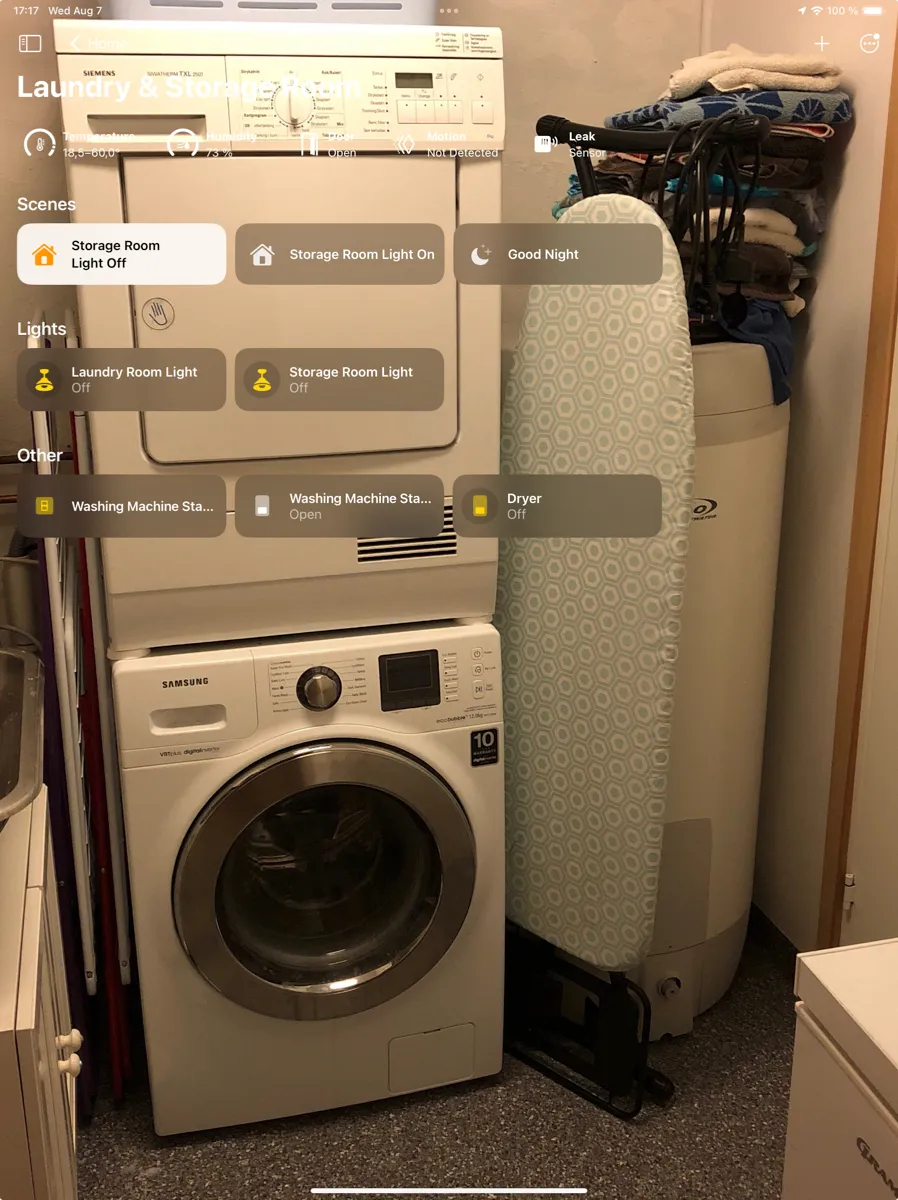
On this page, I present the actual solutions installed in the laundry room of our smart home, with links to specific products used and how these have been set up
This room contains solutions for the following systems:
| System Type | Components |
|---|---|
| Lighting |
|
| Climate Control |
|
| Home Entertainment | None |
| Security and Alarm |
|
| Appliances and food |
|
| Pet Care | None |
| Control and Integration | None |
Description of the solutions in this room
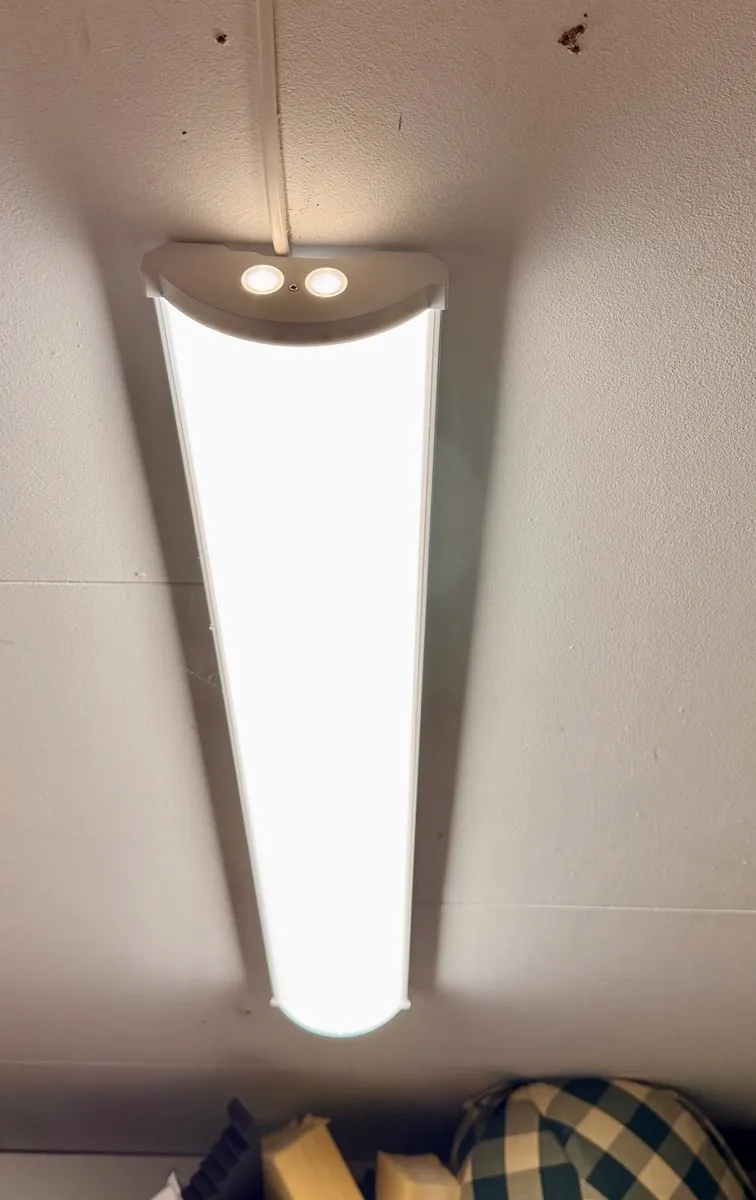
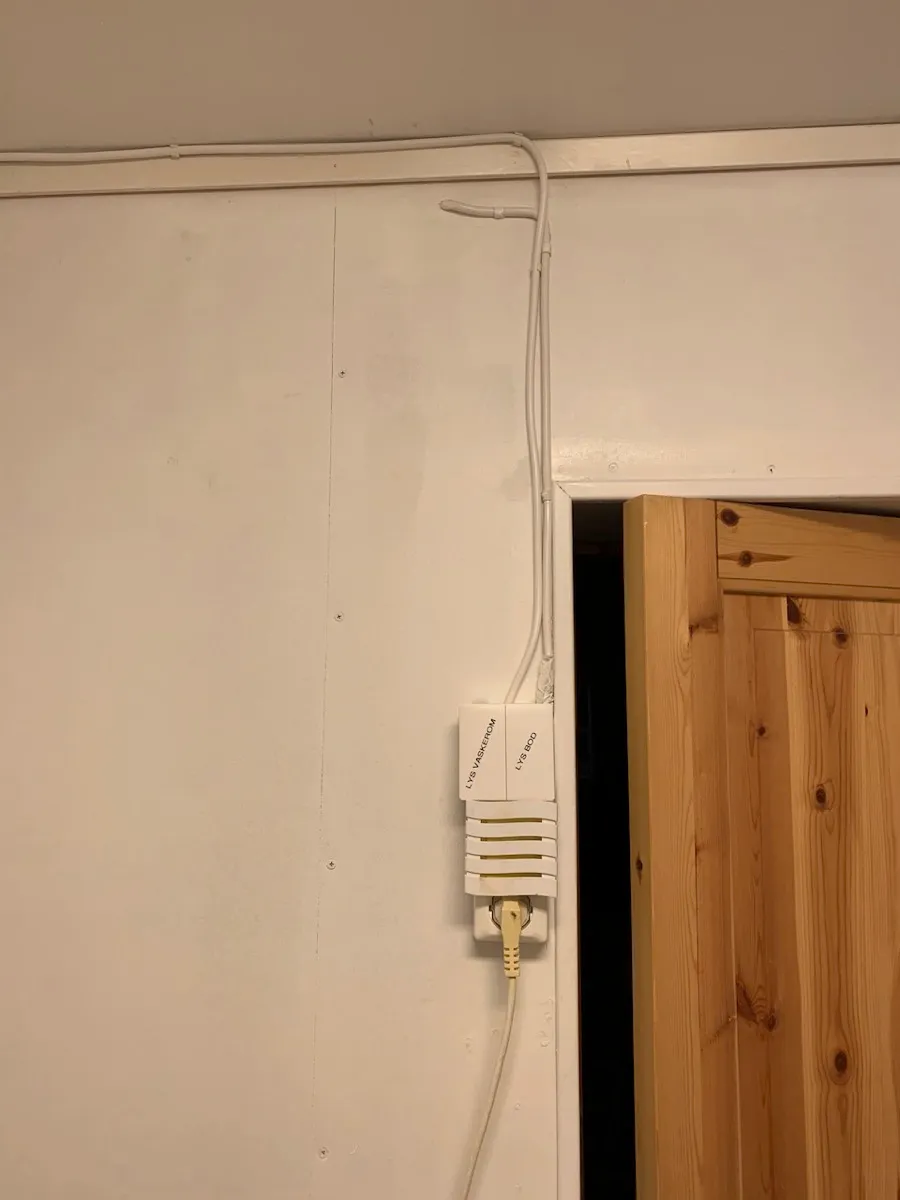
This room is in reality partitioned into two rooms; in addition to the laundry room, there is also a storage room and these are separated by a door. The light solution here has been developed over time, and now consists of ceiling LED fixtures in both rooms, see picture below, as well as a double Aqara smart wall switch, which controls the lights, see picture below.
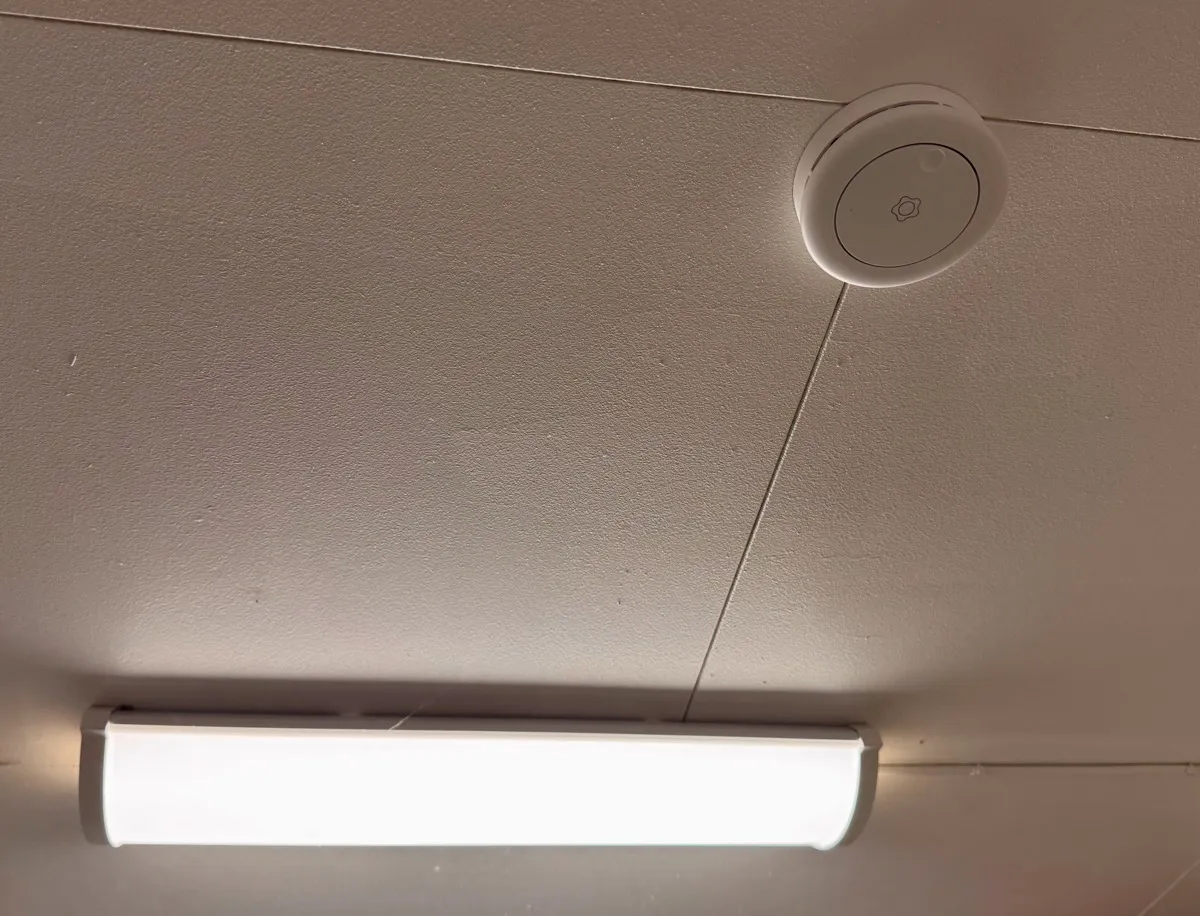
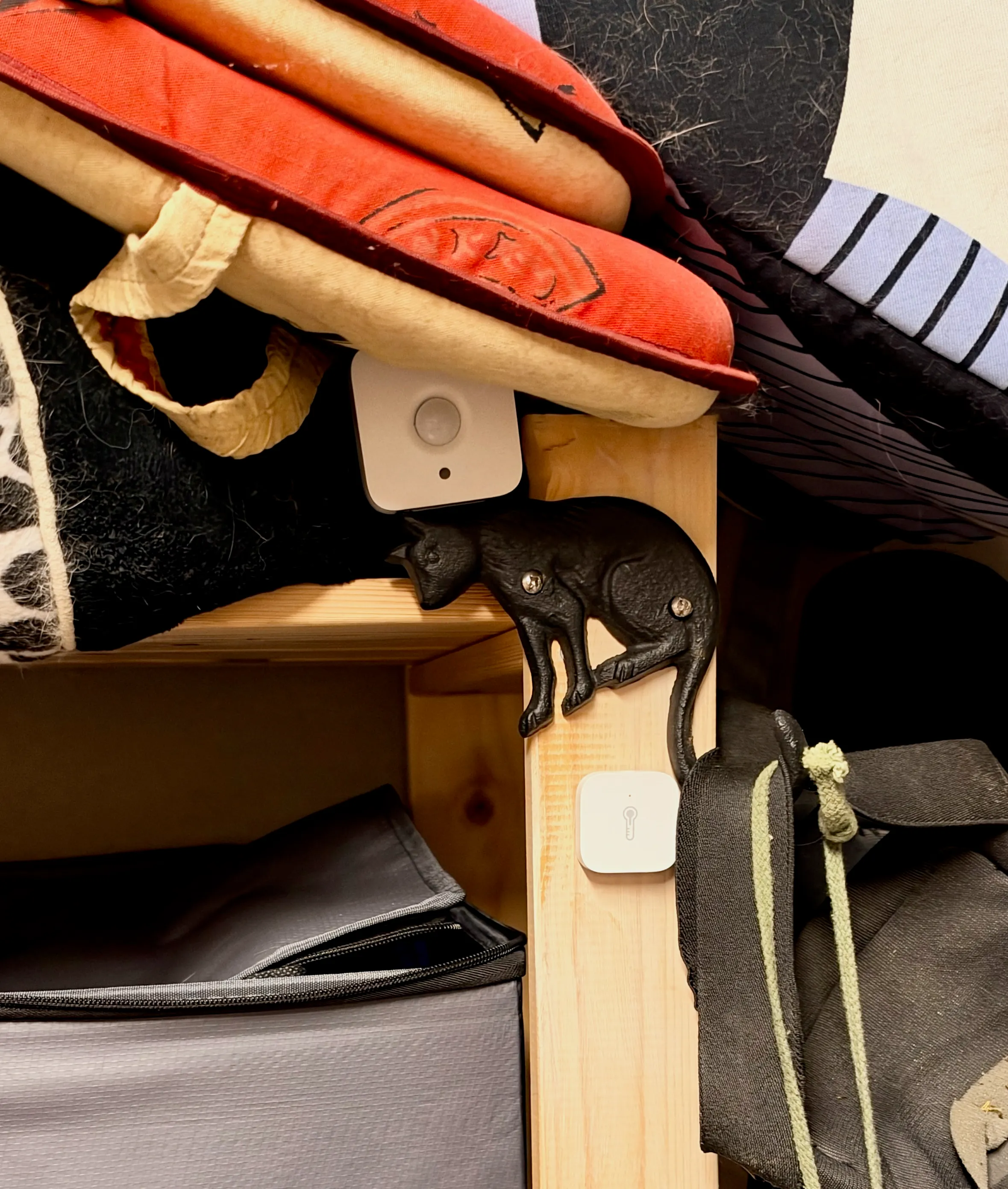
The lights in the laundry room were long controlled by a plain Aqara motion sensor, see picture below, which worked fine for the most part. The drawback was that if you stood too still, the lights would switch off, as they had been programmed to. A more advanced Aqara FP300 presence sensor, also shown below, was therefore also installed on the other side of the room. The original idea was to remove the motion sensor, but experience has shown that it sometimes detects people in the room faster than the presence sensor, even though strictly speaking the presence sensor also has a motion sensor built in. Both sensors are therefore now active, so the light turns on and stays on while someone is in the room, and switches off quickly when it becomes empty.
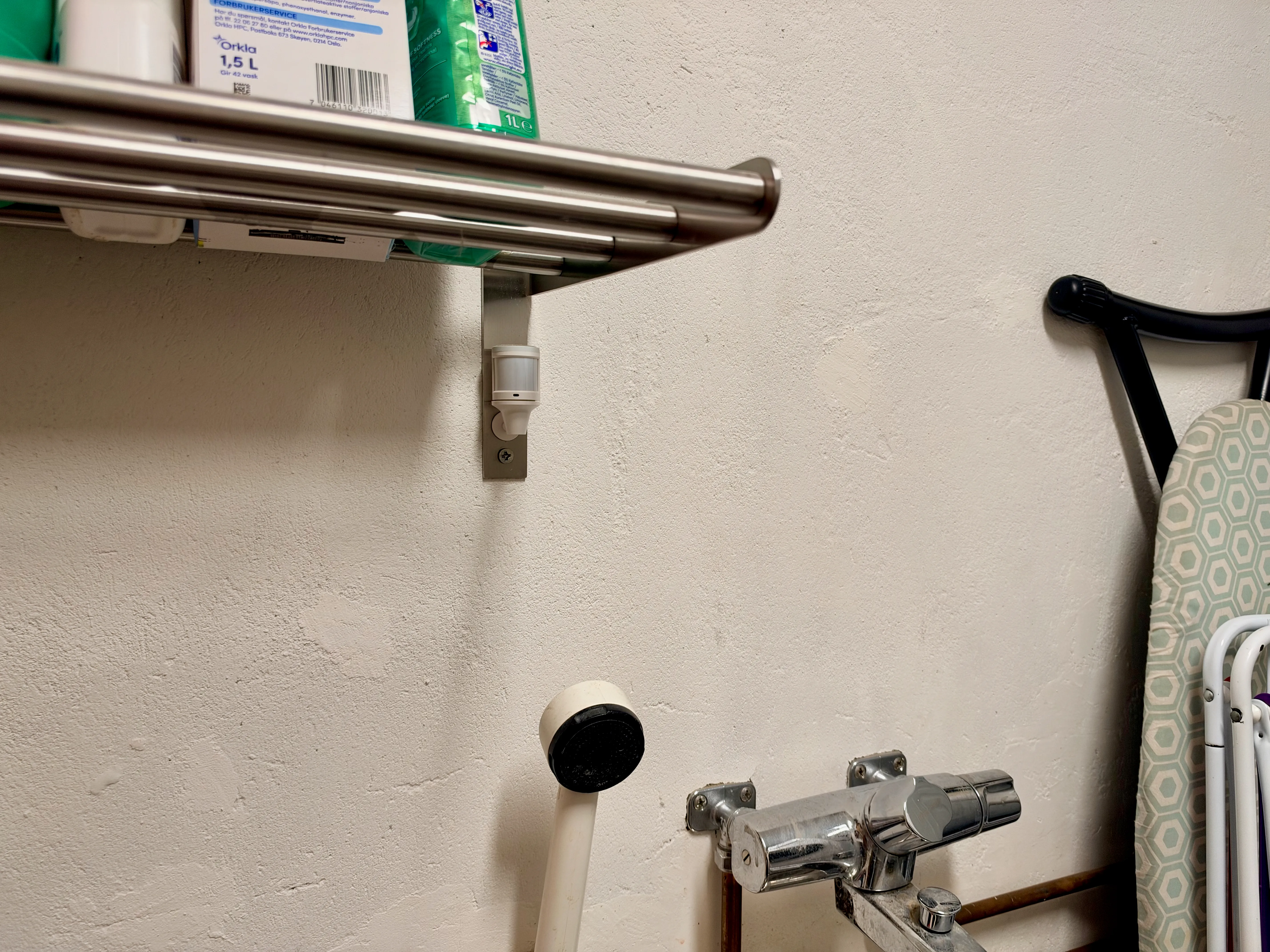
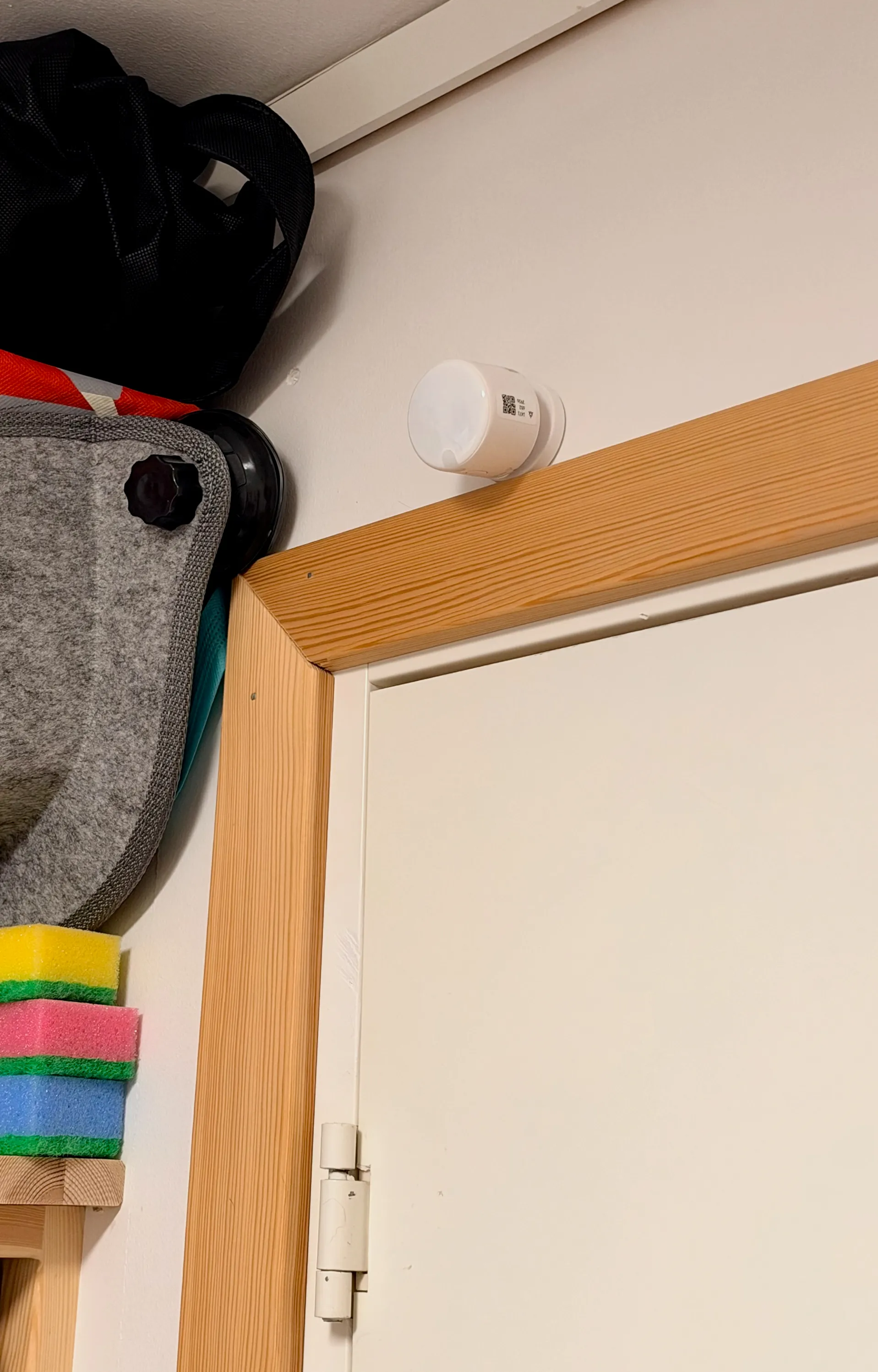
Furthermore, an Aqara door sensor has been installed at the door leading into the storage room, see picture below, and this has been set up so that the light turns on when the door is opened and off again when it is closed, see screenshot below.
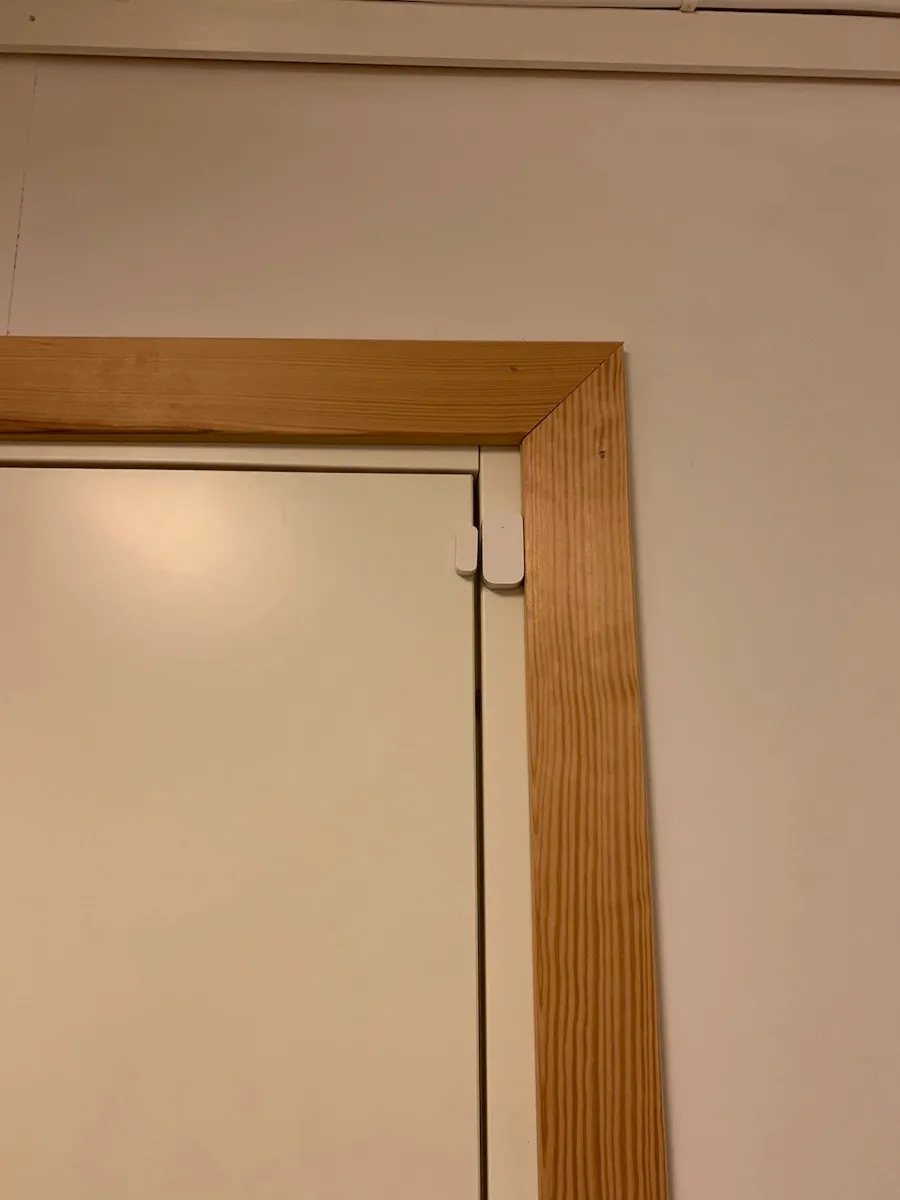
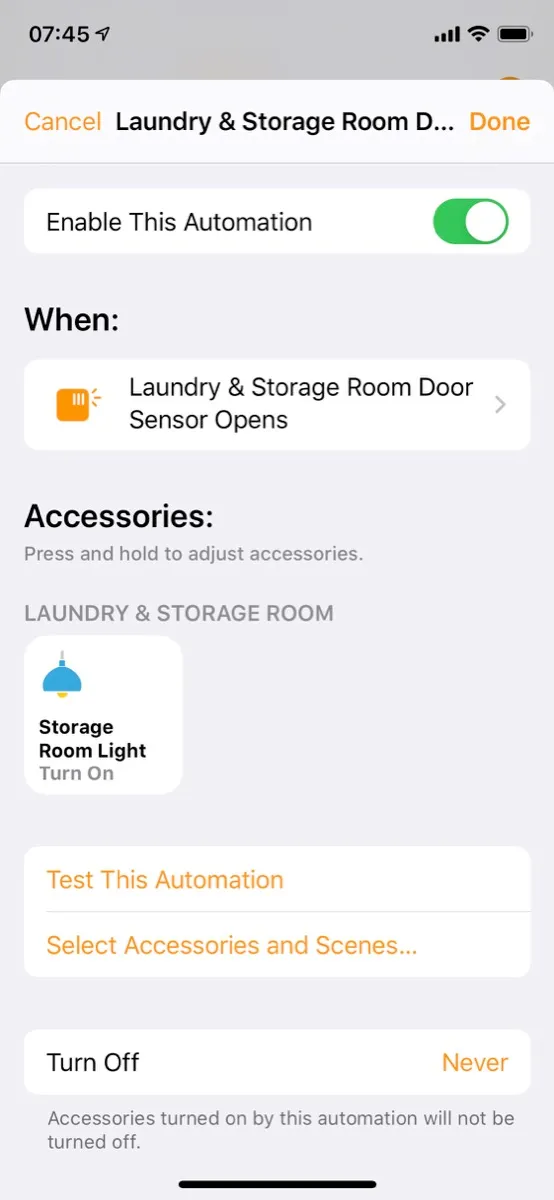
I have installed an Aqara temperature and humidity sensor, though in the storage room beyond the laundry room itself, see picture below. This storage room is not insulated and we store some items here that would not benefit from sub-zero temperatures, so this way we can check the temperature on really cold days. The measurements also show up in the Home app, since the Aqara components natively support Apple Home, see screenshot below.
Controlling the ceiling light in the storage room normally works perfectly well, but in some cases this room is used as a “workshop”. In such cases, it makes sense to have the door closed, but still keep the light on. This was for a long time accomplished manually, but now there is also a Philips Hue motion sensor here, see picture below. This is set up such that the light turns on at motion, if the door is closed (and off again after five minutes).
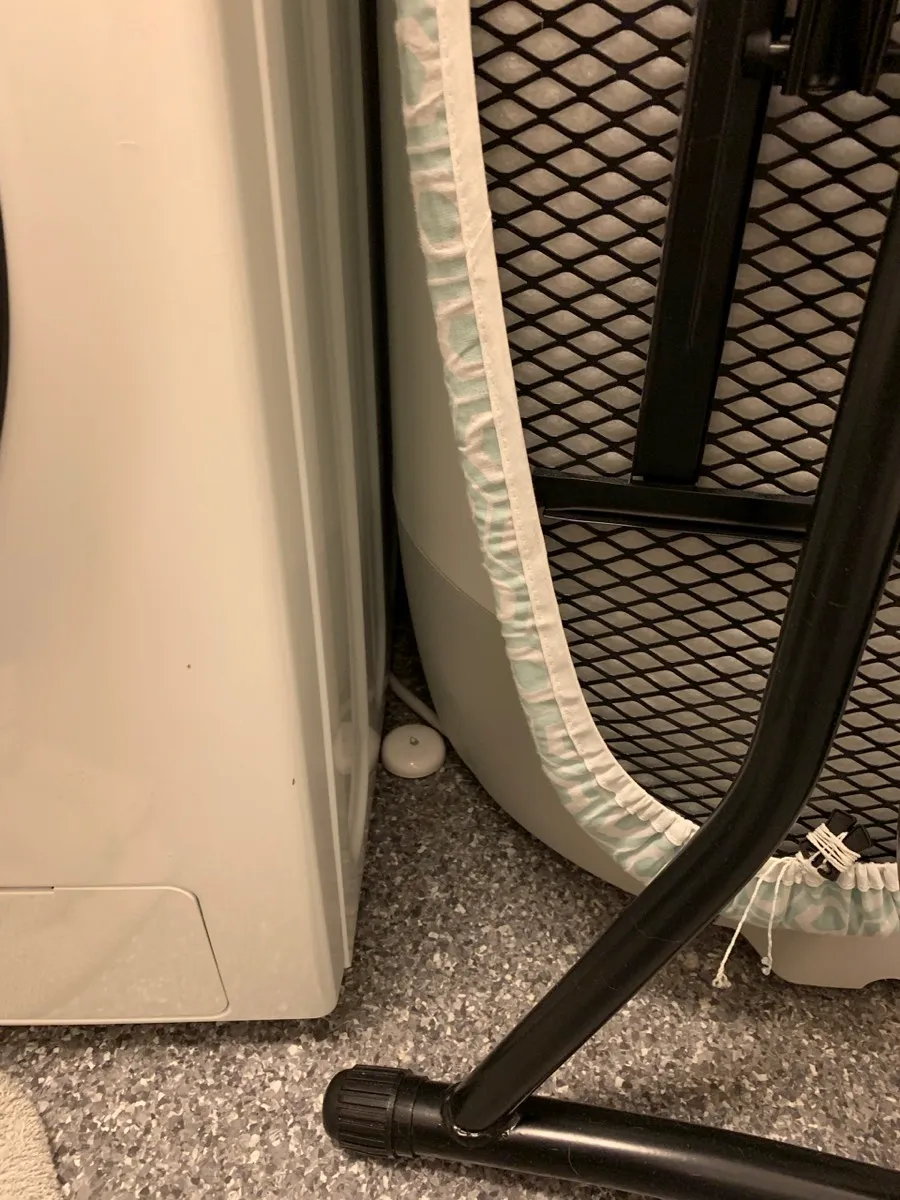
We have also had a couple of cases where the floor drain has become so clogged up by lint and dirt that the Bosch washing machine has interpreted the water outlet to be closed. It then releases the water straight onto the floor, and warns of a leak, but with such a low sound one would have to be right outside the door to hear the warning. We have therefore installed an Aqara water leak sensor on the floor next to the washing machine, see picture below. This is very small and monitors for new leaks, in which case it will give a notification, both via the Aqara app (opens in a new window) and the Home app.
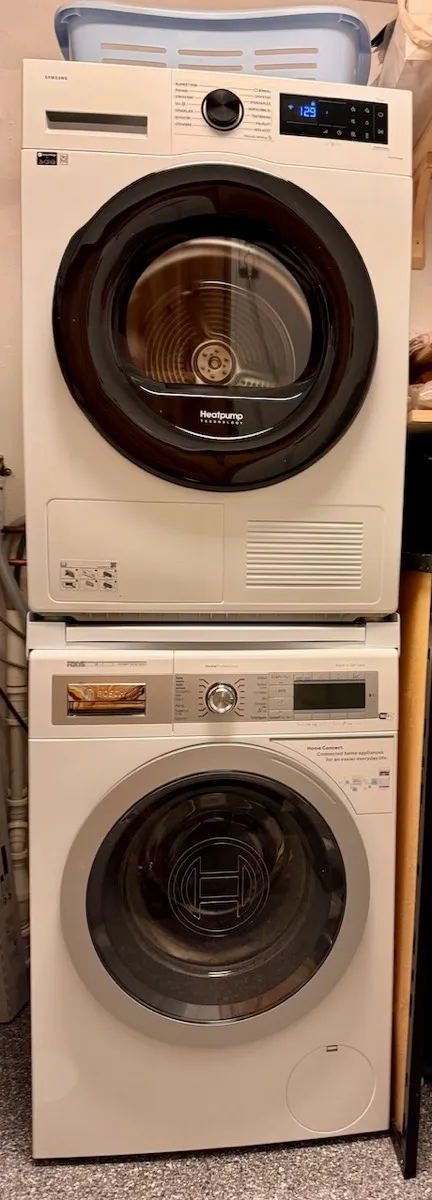
When it comes to laundry, we have eventually upgraded to smart devices, a Bosch washing machine and a Samsung tumble dryer, see picture below. The washing machine is part of an extensive line of products from Bosch/Siemens equipped with so-called Home Connect, which makes the appliances available through the Home Connect app (opens in a new window), see screenshot below, and allows starting/pausing/stopping them, see the remaining time, etc. Similarly, the dryer is connected to Samsung’s SmartThings eco system.
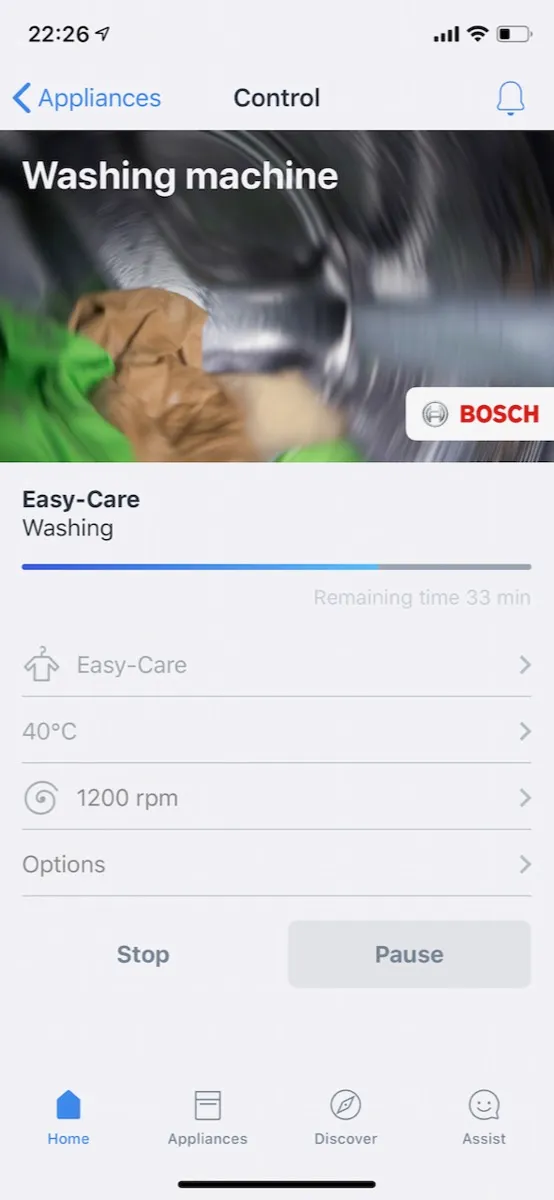
There is also both a Homey app for Home Connect (opens in a new window) and a Home Assistant integration, which both open some functionality, and through these the washing machine can also be brought into Apple Home, but with fairly severe limitations. In practice, this means that we also have to use the Home Connect app, especially to see the remaining time of the current program. Similarly for the dryer, it can be integrated into Homey and into Home Assistant, and from the latter into Apple Home. In practice, it means that we only see whether the devices are running or not, so the benefits of Apple Home integration is limited.
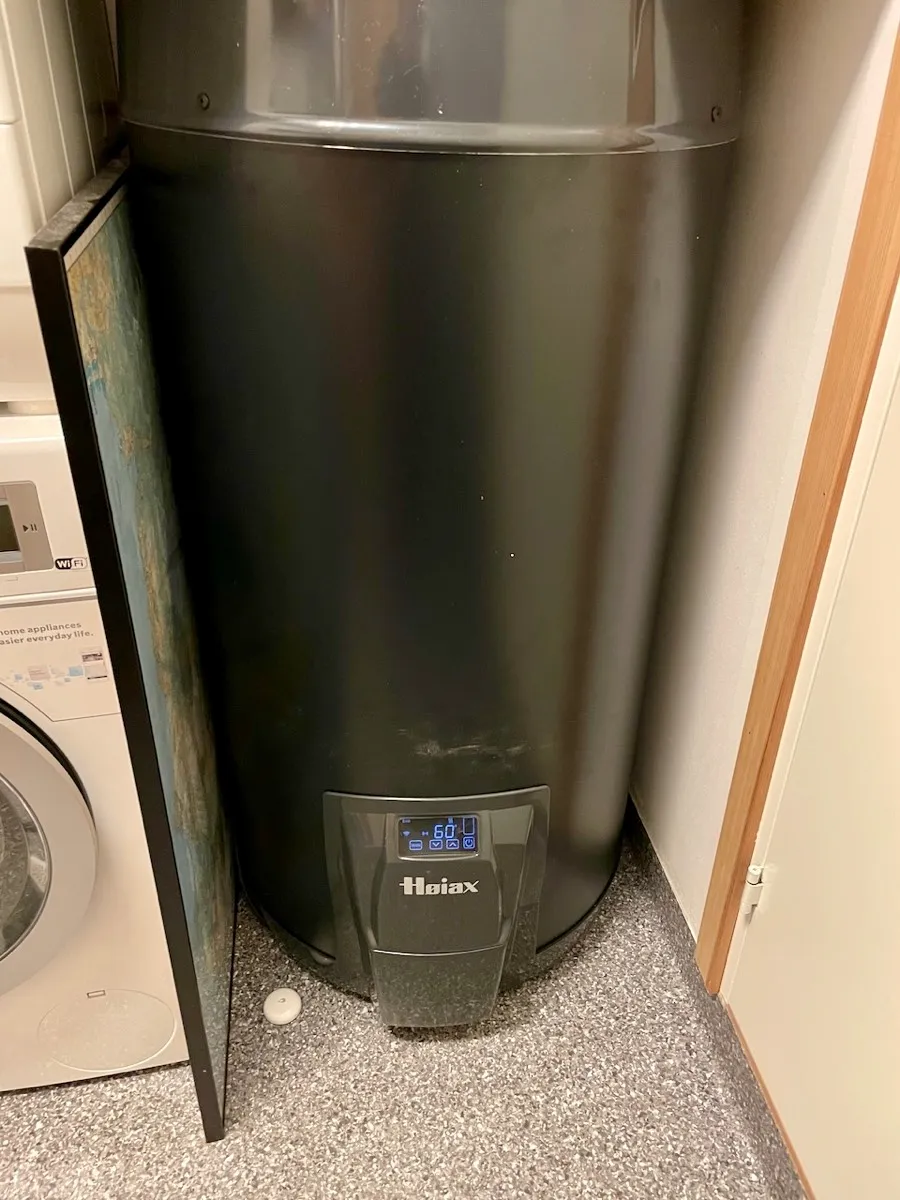
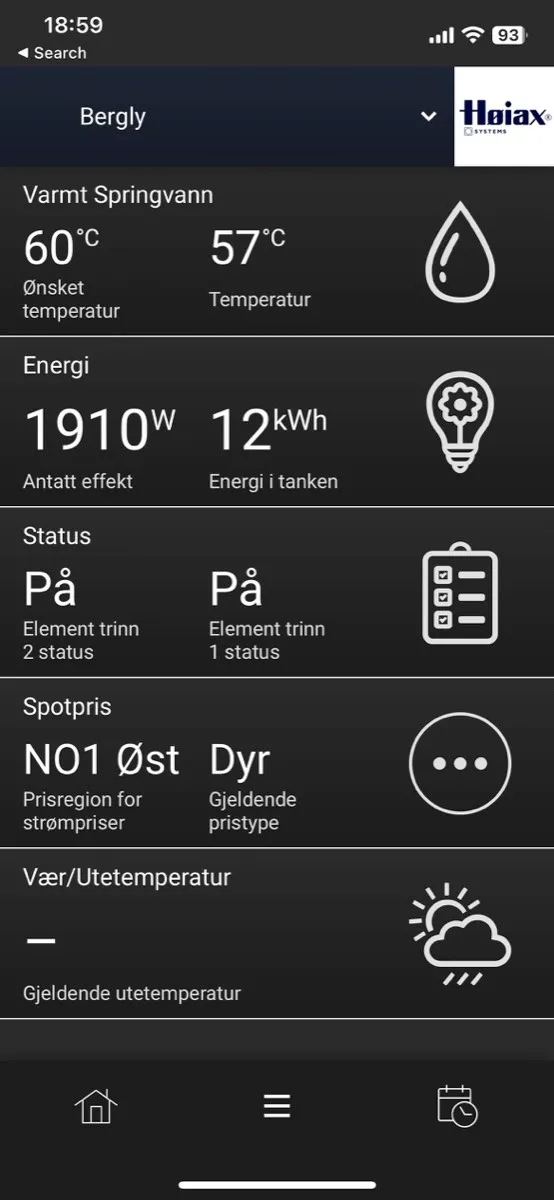
The last years, electrical power has been very expensive here and heating hot water is one of the things that consume much power. When smart hot water heaters were finally launched, we installed a Høiax Connected 200 with built-in temperature sensor, see picture below, which is online. It is controlled from an app, myUplink, see screenshot below, and mostly minds itself and requires very little intervention. It is connected to a database of power rates and controls the water heating to save as much money as possible.
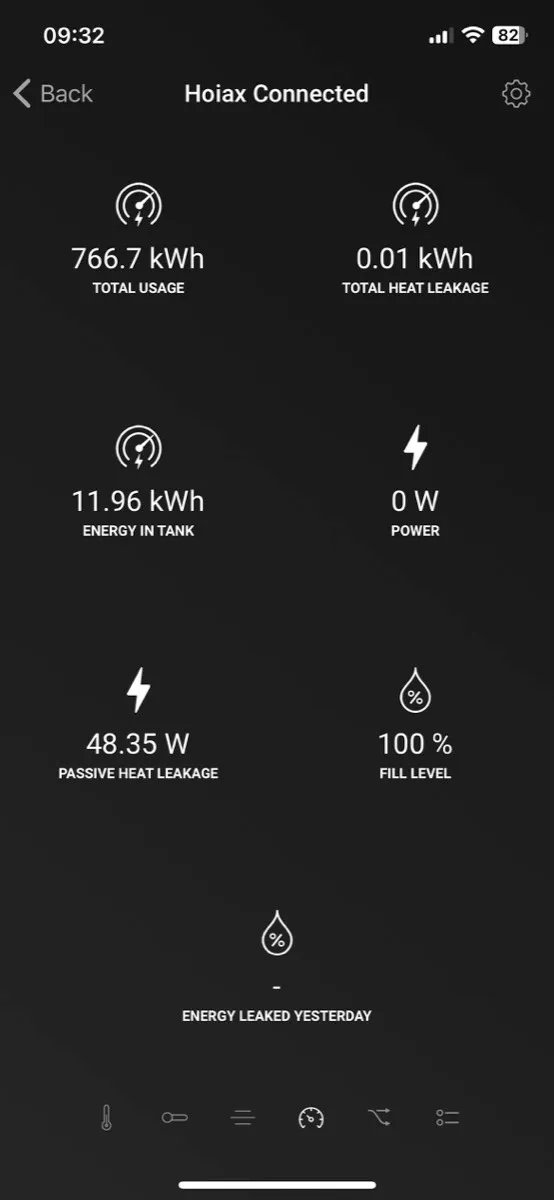
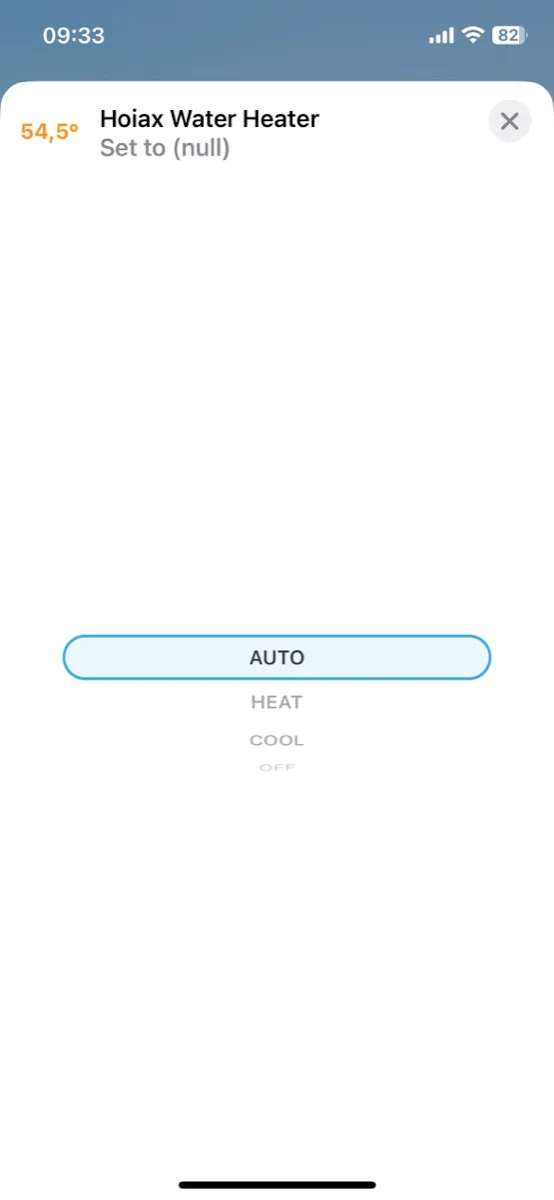
There is also a Homey app for the heater, and via Homey it also comes into Apple Home. As the screenshots below show, there is full support for it in Homey, but in Apple Home only the temperature is shown and one can change heating mode.
In the Home app, the devices are shown as in the screenshot below.